

Template CSV Import/Export
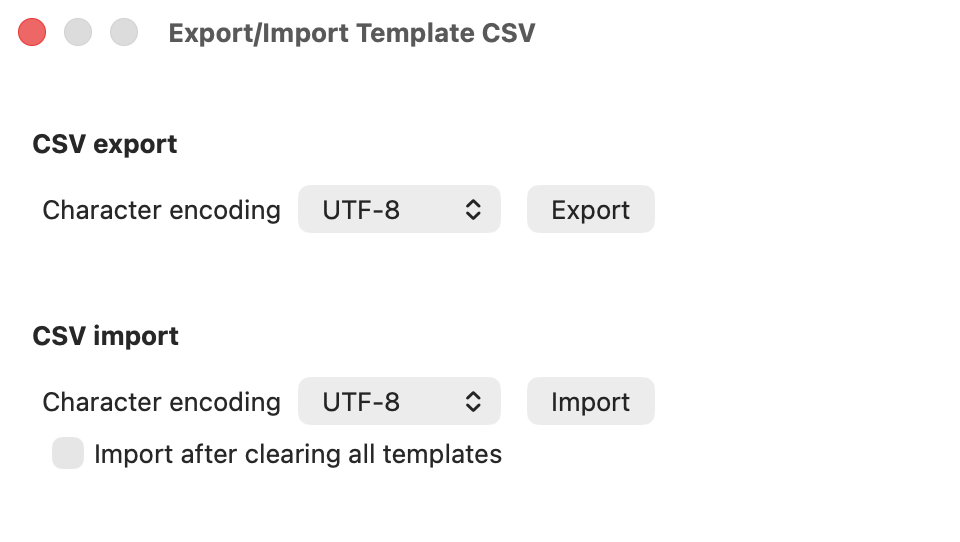
Templates can be imported and exported in CSV format.
Exporting to CSV allows you to back up your templates, while importing makes it easy to edit them in bulk.
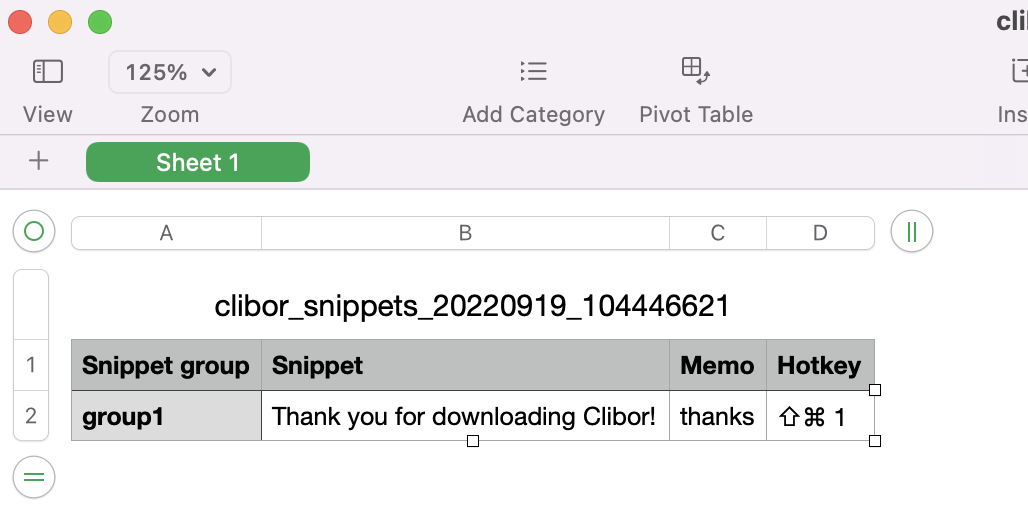
The CSV format is as follows.
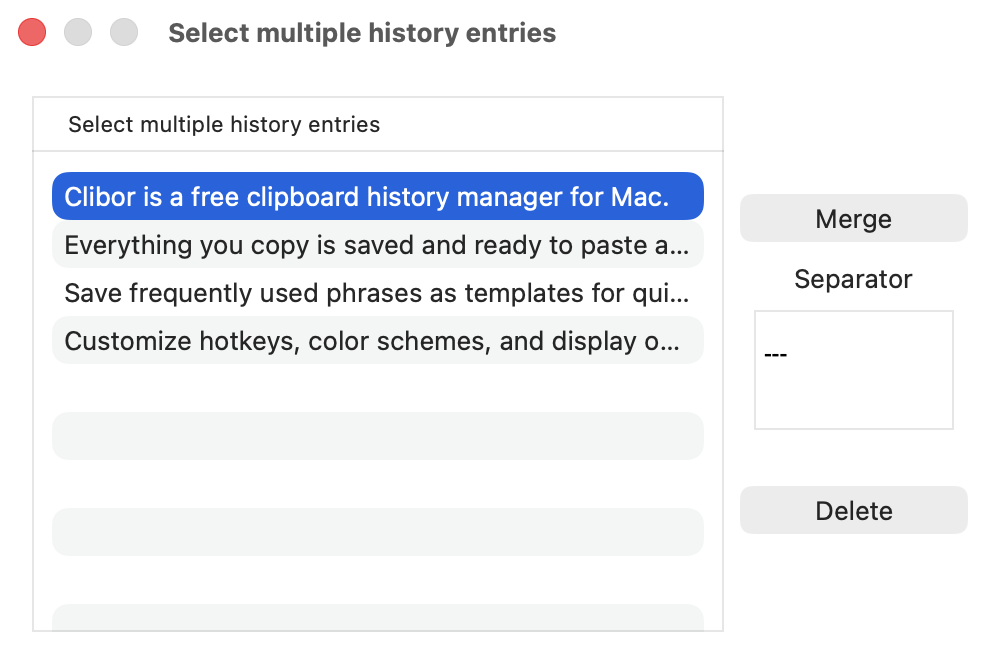
Multiple selection of history
You can select, delete, and merge multiple clipboard history entries.
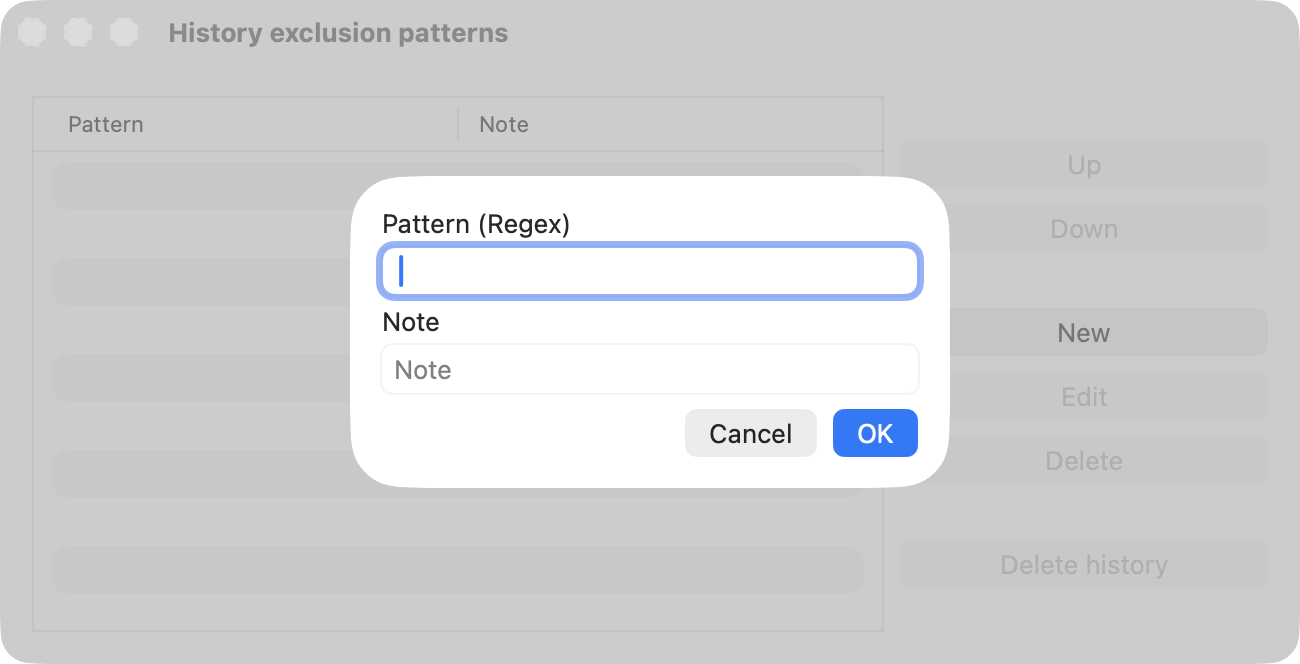
Clipboard: Exclude text
You can specify text to be excluded from the clipboard history.
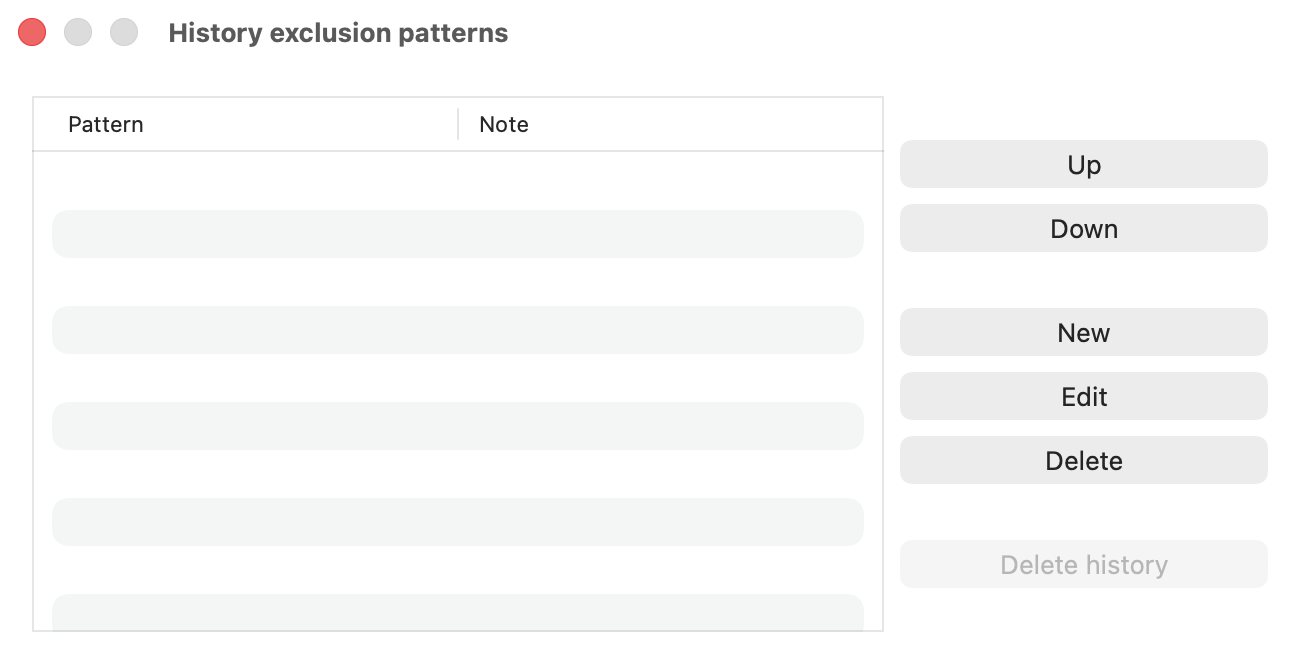
By setting a regular expression pattern, any matching clipboard data will not be saved in the history.
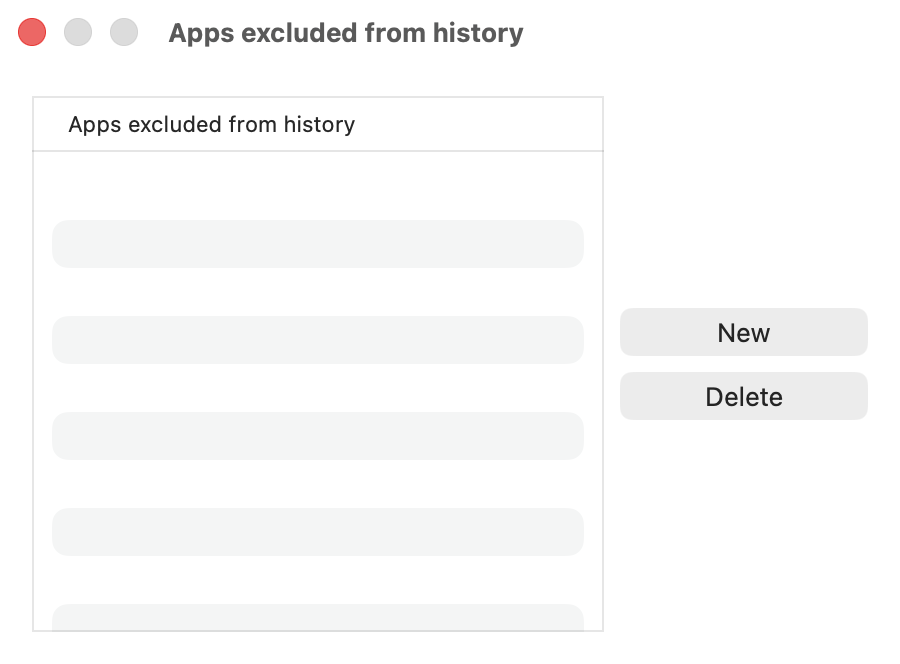
Clipboard: Excluded apps
You can specify apps to be excluded from clipboard updates.
Choose the apps you want to exclude and add them to the list.
Split into entries by line break
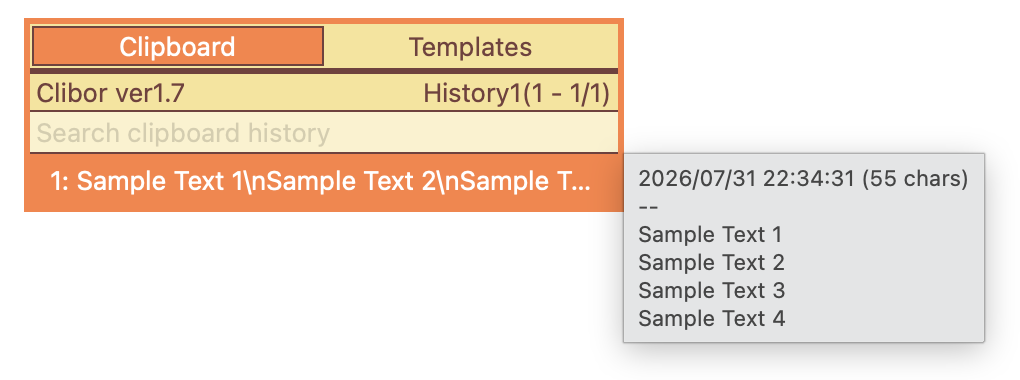
You can split a multi-line history entry by line break.
For example, suppose you have a history entry like this:
From the right-click menu, choose "Split into entries by line break".
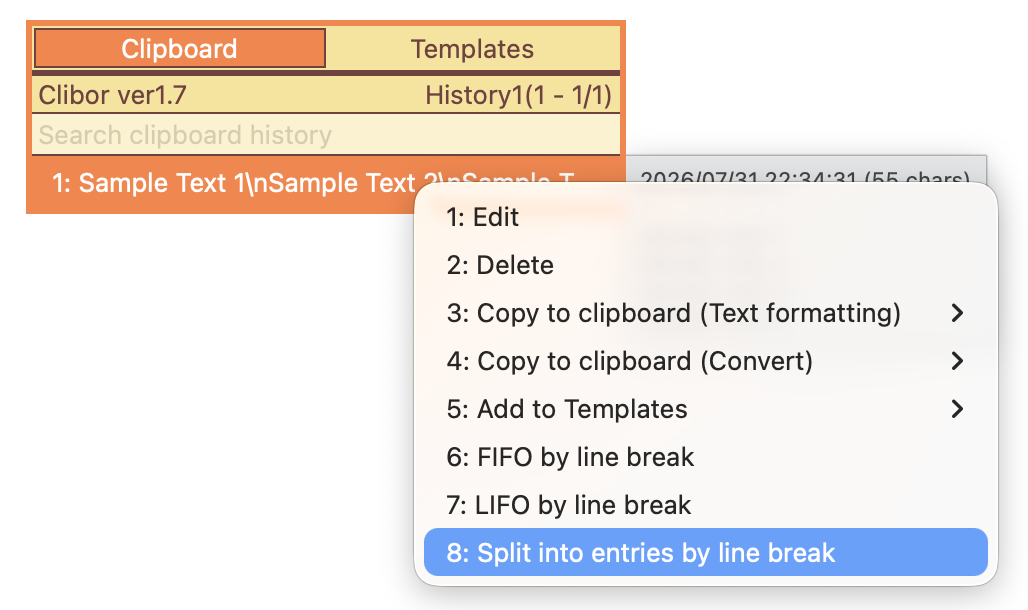
The entry is then expanded into three history entries.
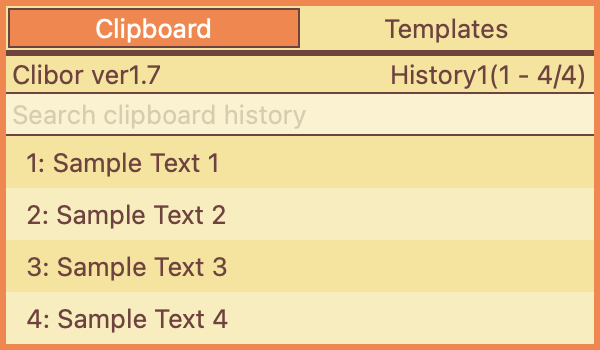
If the history entry has only one line, or if splitting would exceed the limit, the menu item is unavailable (the limit is 200 lines).
This concludes the advanced guide to Clibor.
Next, take a look at various usage examples.