

About the Preferences
Changes made in the Preferences are applied immediately.
For numeric fields, changes are confirmed when you press the Return key or move the focus to another item after editing.
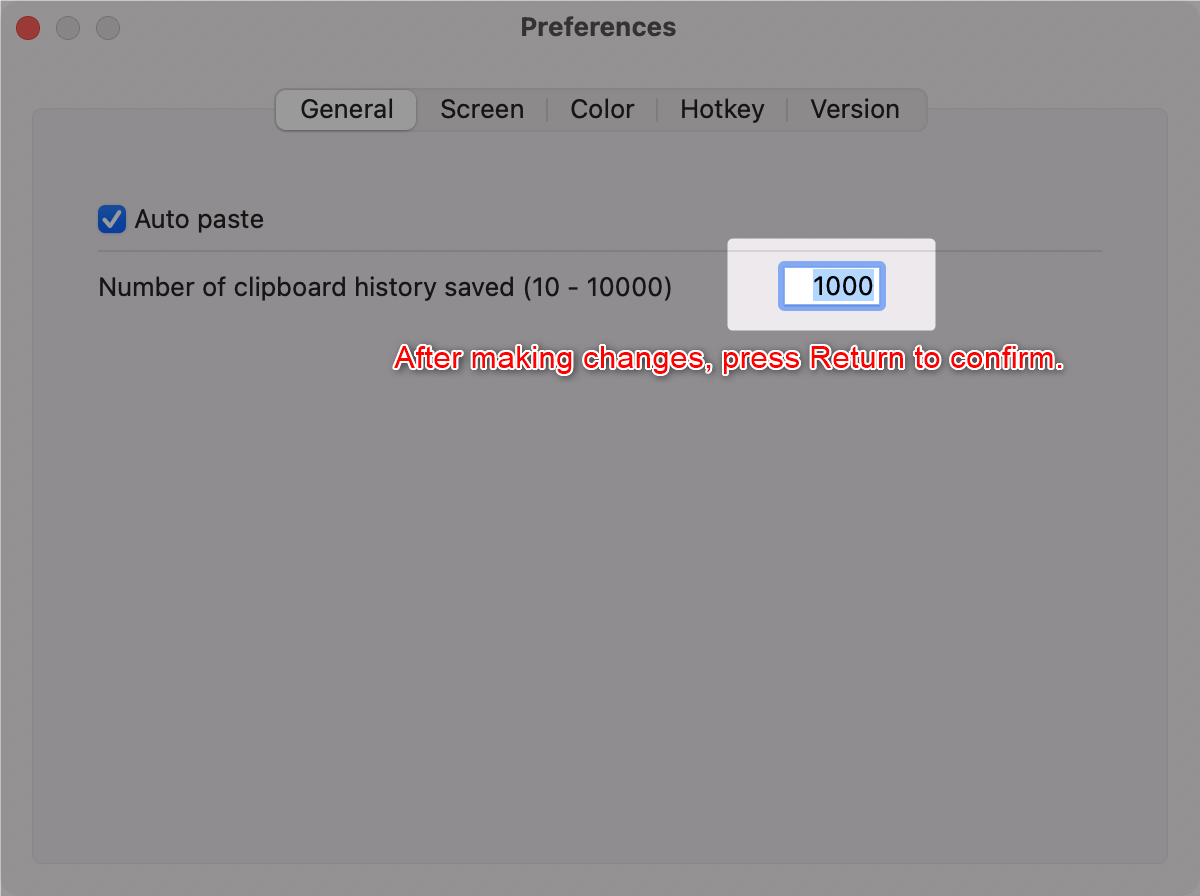
General
| Maximum number of clipboard history entries to save | Specifies the number of clipboard history entries to retain. Up to 10,000 entries can be saved. (10–10,000 entries) |
| Auto-paste | If enabled, selecting a clipboard history entry or template will automatically paste it at the caret position. |
| Do not move the selected clipboard history entry to the top | Prevents the selected clipboard history entry from moving to the top of the list. |
Screen
| Main screen width | Adjust the width of the main screen. (255–999 pixels) |
| Border thickness of the main screen | Change the thickness of the main screen border. (1–3 pixels) |
| Number of clipboard history entries in the list | Specifies the number of entries shown in the main screen list. If the history exceeds this number, additional entries will be displayed on the next page. (5–72 entries) |
| Semi-transparent main screen background | Makes the main screen background semi-transparent. |
| Show a shadow on the main screen | If enabled, a shadow will be displayed around the main screen. |
| Open the Templates tab by default | Opens the Templates tab by default. |
| Do not switch tabs on mouse over | Prevents tabs from switching on hover; requires a single click to switch. |
| Focus on the first row when displaying the screen | When the screen is displayed or when switching tabs/pages, focus moves to the first entry. |
Color
| Color | Select individual colors for customization. |
| Color scheme preset | Choose from predefined color scheme presets. If you create a custom color scheme you like, you can save it as a Custom preset. |
| Checking and loading color scheme values | View or load saved color values. |
Hotkey
| Show the main screen | Assign a hotkey to show the main screen. |
| Show the main screen (right tab) | Assign a hotkey to show the main screen (right tab). |
| FIFO | Assign a hotkey to toggle FIFO mode. |
| LIFO | Assign a hotkey to toggle LIFO mode. |
Version
| Check for updates automatically | If enabled, Clibor will automatically check for updates at startup or once per day. |