

Let's Use Templates!
By saving frequently used sentences as Templates, you can set them to the clipboard anytime.
For example, you can save "Thank you for your constant support." for quick access.
Additionally, Templates can be organized into groups for easier management.
Edit Templates
First, let's save a new entry.
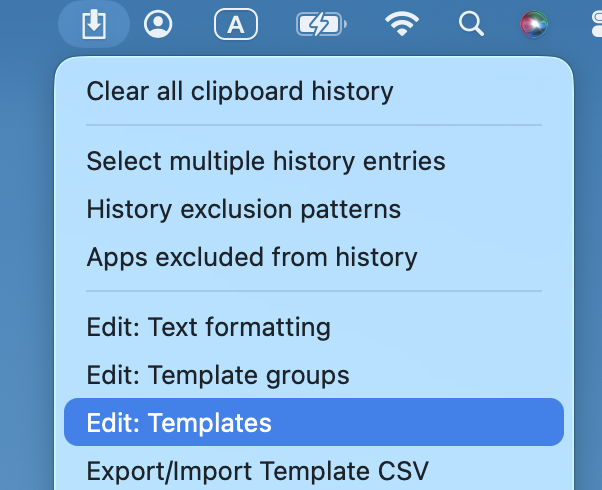
From the Clibor menu, select "Edit: Templates".
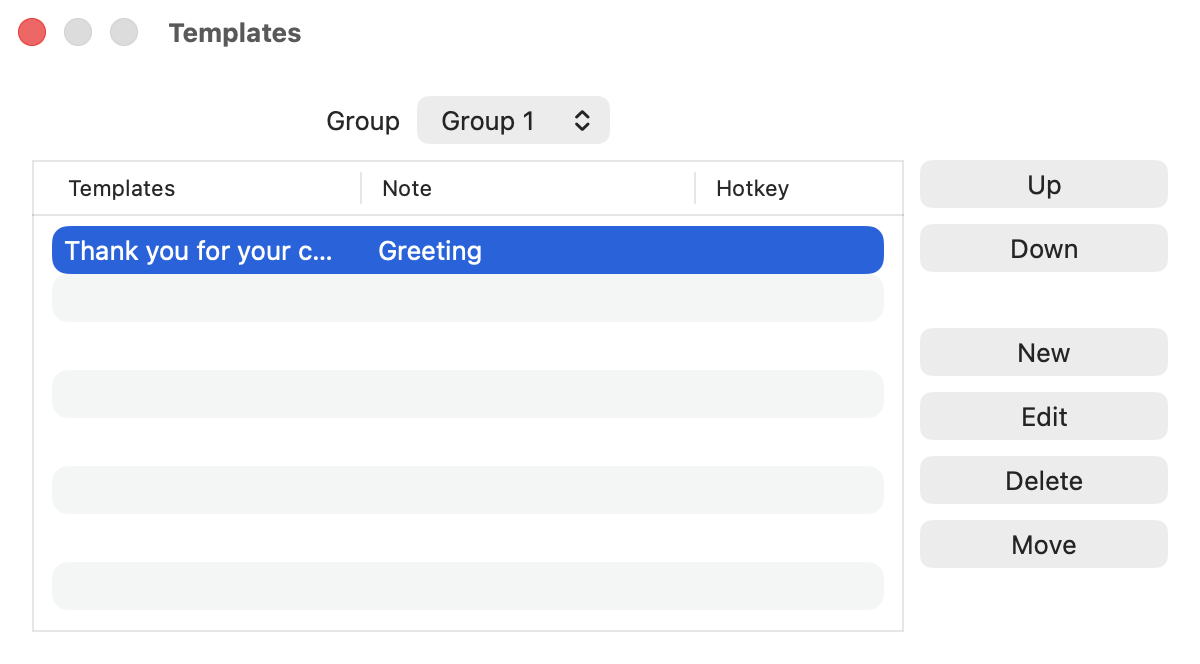
The Templates list screen will appear, where you can add, edit, and delete templates.
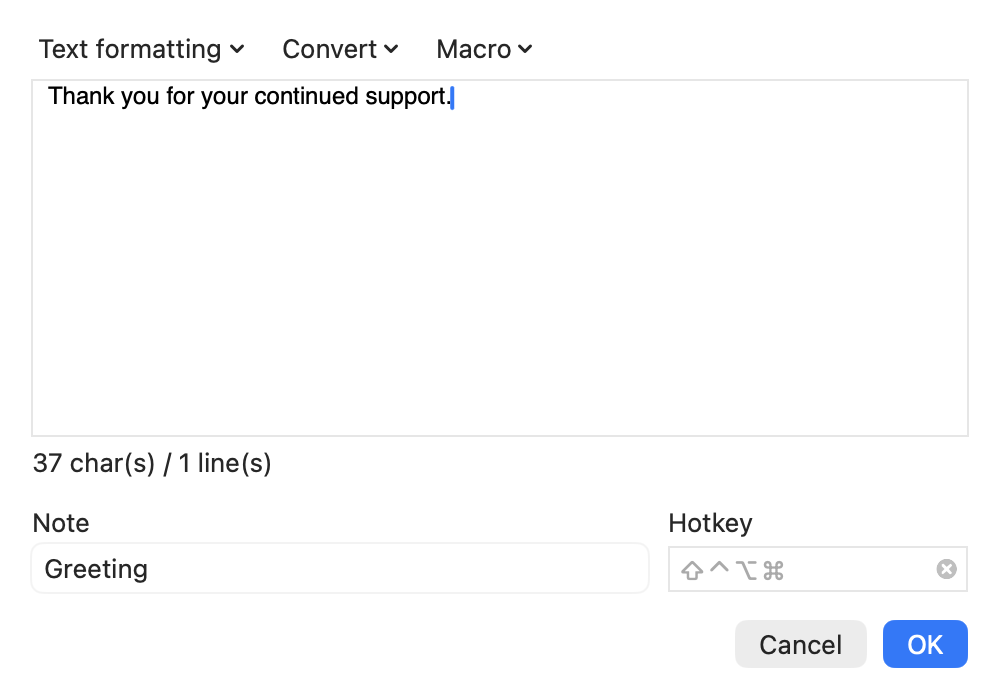
Click the Add button to create a new entry.
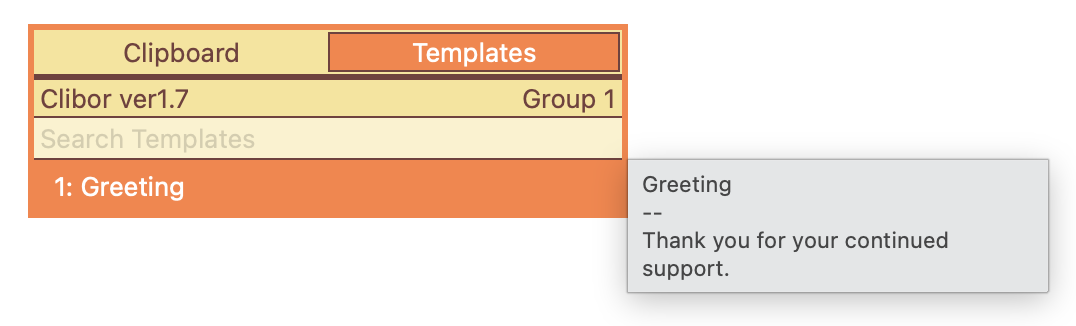
Once saved, simply select the template to set it to the clipboard.
You can also set it directly using a specified hotkey.
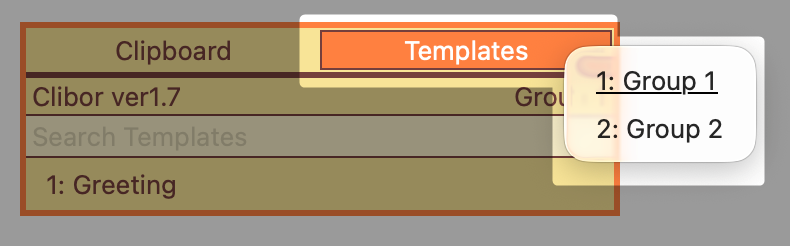
To switch between template groups, right-click the Templates tab and select Groups.
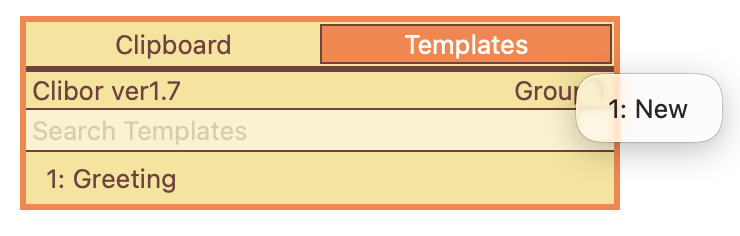
Right-click a group name on the main screen to quickly add a new template.
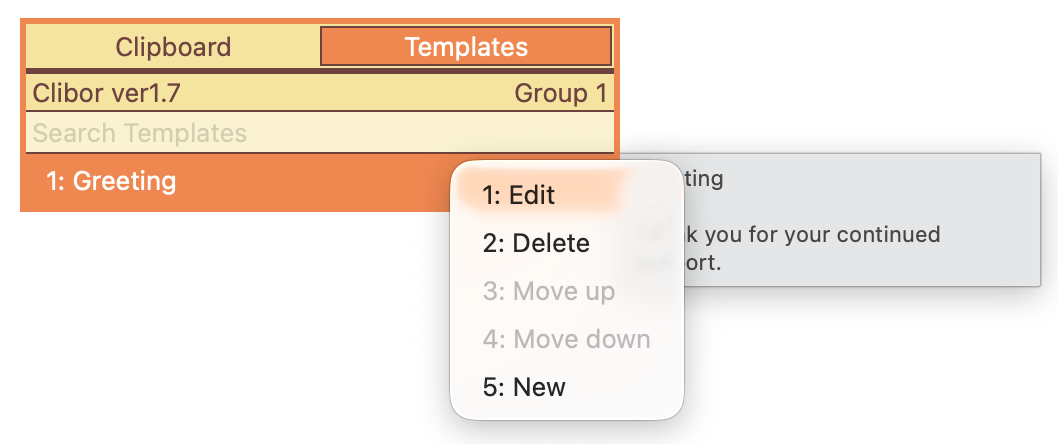
Right-click a template to rearrange, edit, or delete it.
Edit Template groups
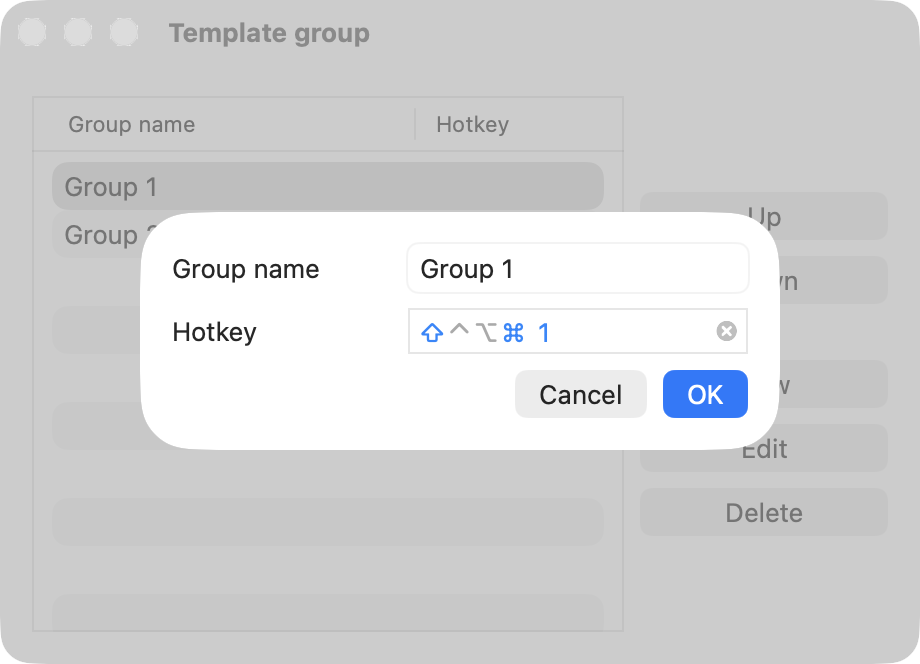
From the Clibor menu, select "Edit: Template groups".
The Template groups list screen will appear, where you can add, edit, and delete template groups.
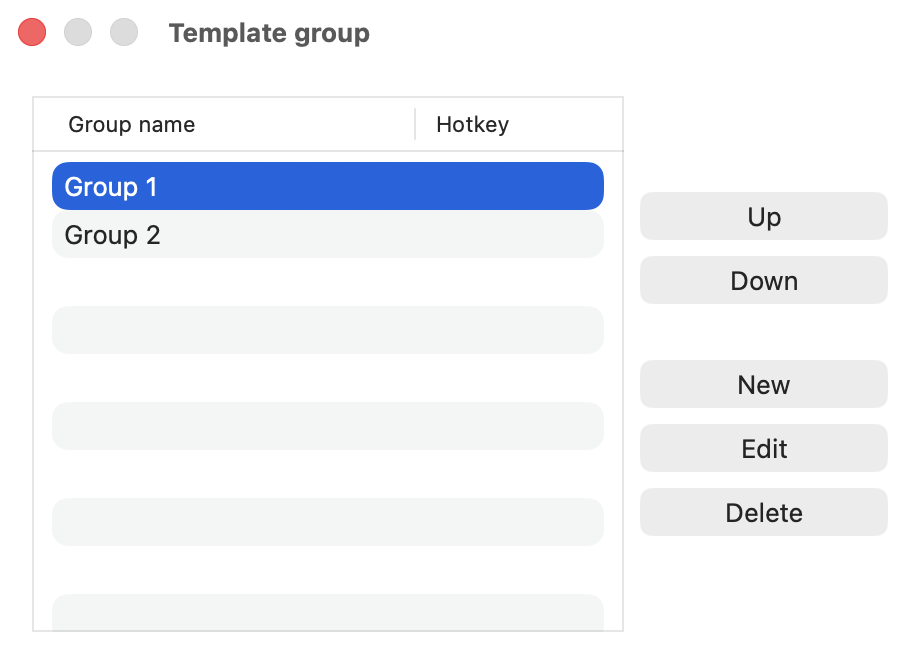
You can assign a hotkey to a template group.
Using the hotkey, you can quickly open the assigned template group.
Next, let's explore one of Clibor's most useful features: the FIFO/LIFO function.