

How to set the color scheme
You can customize Clibor's colors in Preferences > Color.
Click Default or one of the Color 1–Color 4 buttons to switch presets instantly.
To build your own scheme, click each color button to change individual colors.
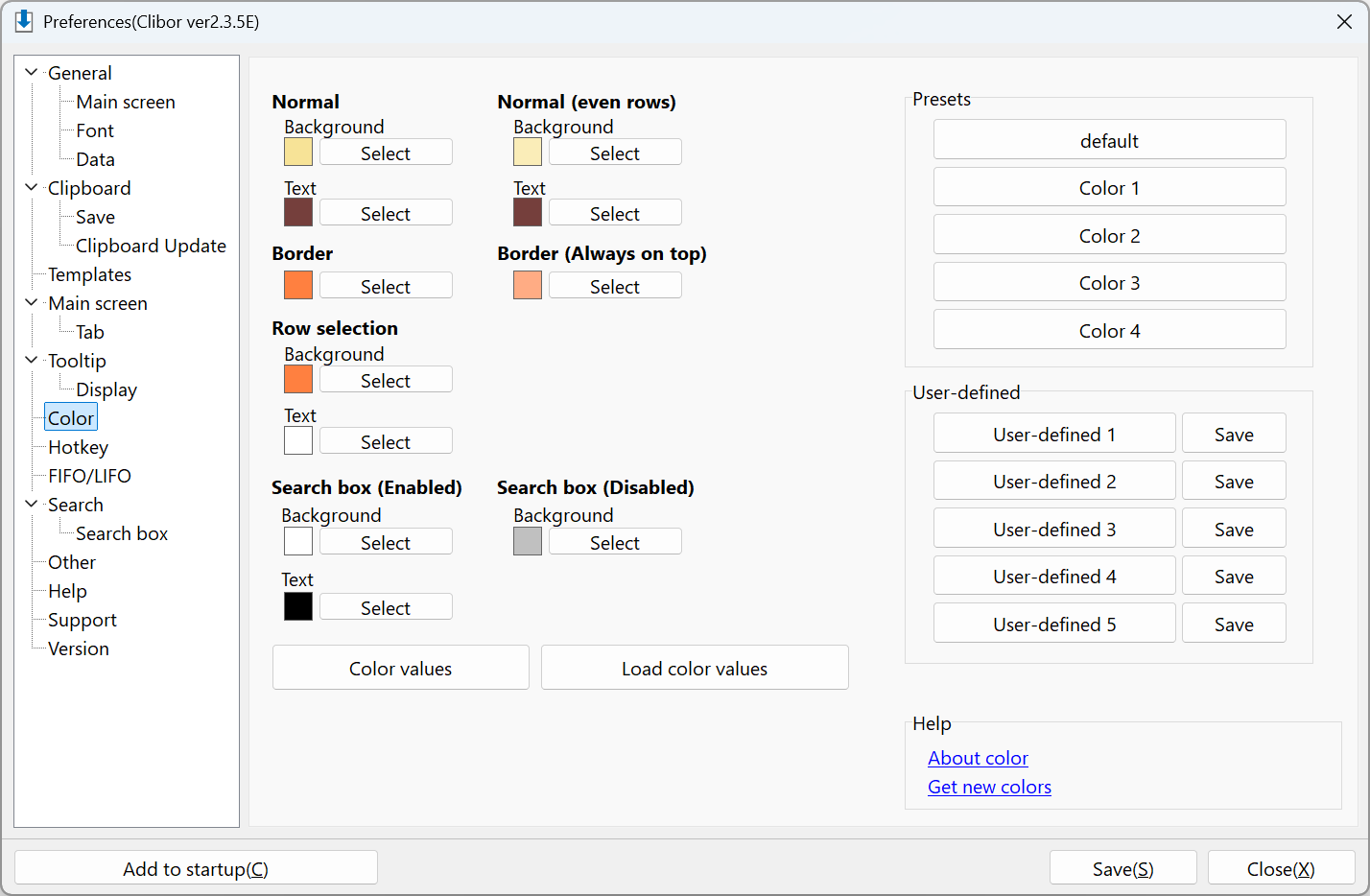
If you have a favorite custom color scheme, save it to one of the Custom slots for future use!
To view the color scheme values, click the Color values button.
The displayed values are color codes.
Example:
[CLIBOR]
BACK_COLOR=$0097E3F7
SLTBACK_COLOR=$004080FF
BACK_COLORF=$003C3F75
SLTBACK_COLORF=clWhite
LINE_COLOR=$004080FF
LINEHYOJI_COLOR=$0084ACFF
BACK_COLOR2=$00B8EDFA
BACK_COLORF2=$003C3F75
SEARCHT=clWhite
SEARCHF=clSilver
SEARCHTF=clBlack
Load color values
Click the Load color values button, paste the text below, then click Load to apply them.
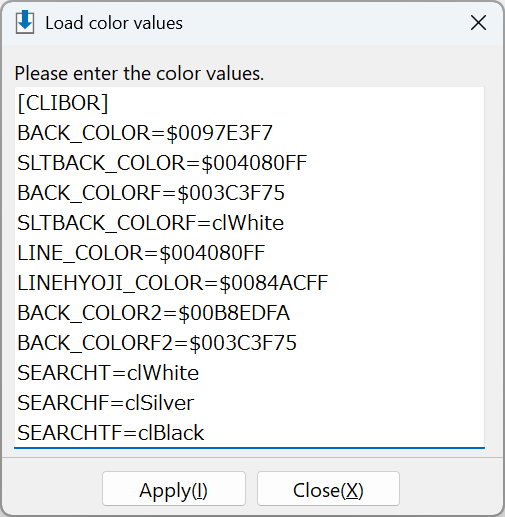
Example:
[CLIBOR]
BACK_COLOR=$0097E3F7
SLTBACK_COLOR=$004080FF
BACK_COLORF=$003C3F75
SLTBACK_COLORF=clWhite
LINE_COLOR=$004080FF
LINEHYOJI_COLOR=$0084ACFF
BACK_COLOR2=$00B8EDFA
BACK_COLORF2=$003C3F75
SEARCHT=clWhite
SEARCHF=clSilver
SEARCHTF=clBlack
We've published a variety of color scheme values on the presets page — feel free to try loading one you like.