

Convert rich text to plain text
Clibor saves copied content as plain text, so anything pasted from Clibor will be stripped of formatting.
If you copy rich text from Excel and paste it normally (Ctrl+V), it retains its original formatting.
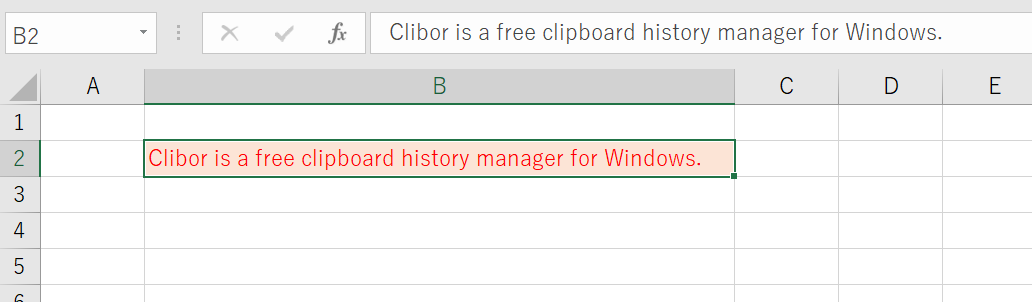
To paste it as plain text, open Clibor and select the entry from your clipboard history.
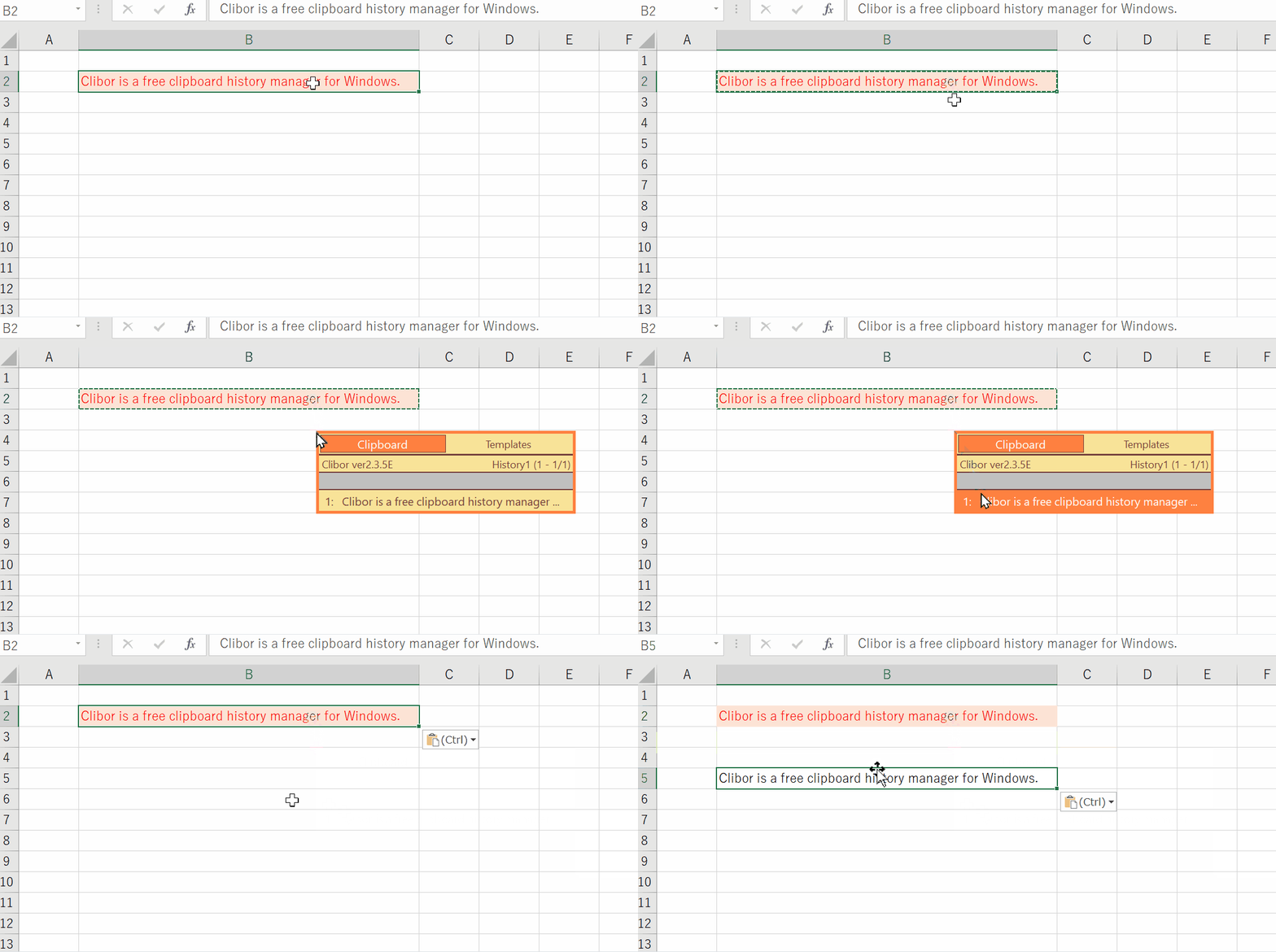
Paste continuously after searching
Clibor normally hides itself when you select a clipboard history entry or Template.
If you want to paste several items in a row, double-click a tab to turn on Always on top.
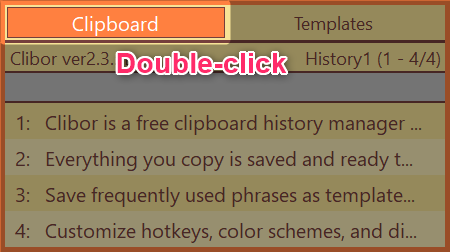
When you are done, double-click the tab again to turn Always on top off.
FIFO mode by line break
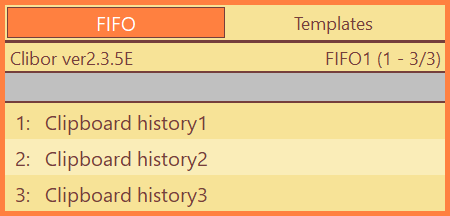
Right-click a clipboard history entry and choose FIFO by line break to split multi-line text into separate FIFO entries, one per line.
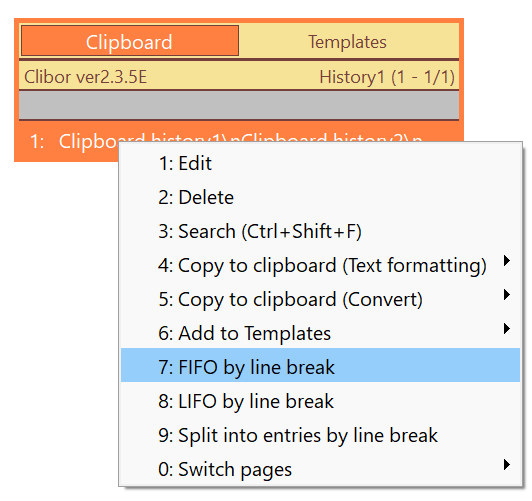
For example, copy the following text, then choose FIFO by line break from the right-click menu:
Clipboard history1
Clipboard history2
Clipboard history3
Clibor switches to FIFO mode immediately.
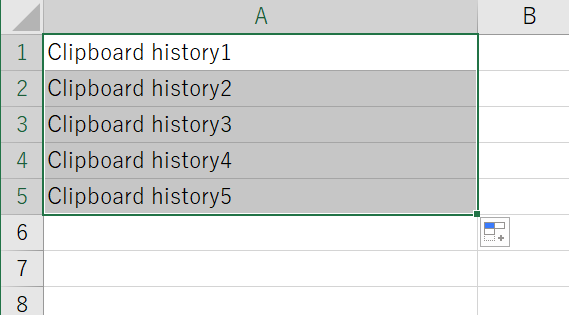
This feature is also useful in Excel.
Copy multiple cells and use FIFO by line break the same way to paste one cell per step in FIFO mode.
Save your work periodically
Have you ever lost text you spent time writing — from a browser crash, an accidental close, or an unexpected freeze?
To prevent this, simply press Ctrl + A to select all text, then Ctrl + C to copy it to Clibor.
This way, even if your work is lost, you can easily retrieve it from Clibor's clipboard history.
Get a list of file and folder paths
When you copy files or folders, Clibor can save their full paths to your clipboard history.
Enable the following setting:
Preferences > Clipboard > Clipboard update > Save the path to history when copying files or folders
Select files or folders and copy them.
Their full paths appear in your clipboard history. (You can copy multiple files or folders at once.)
C:\Clibor\ch
C:\Clibor\ct
C:\Clibor\ClbHook.dll
C:\Clibor\Clibor.exe
C:\Clibor\Clibor.xml
Select the paths you need from your clipboard history.
Extract only the file name from each full path
Create a text formatting rule to extract just the file name from each full path.
After copying the full paths, apply the formatting rule you created.
Only the file names remain.
C:\Clibor\ch
C:\Clibor\ct
C:\Clibor\ClbHook.dll
C:\Clibor\Clibor.exe
C:\Clibor\Clibor.xml
↓ after formatting
ch
ct
ClbHook.dll
Clibor.exe
Clibor.xml
Save all clipboard history to Notepad
When your clipboard history grows large, you can save it all to a text file at once.
Suppose your history looks like this:
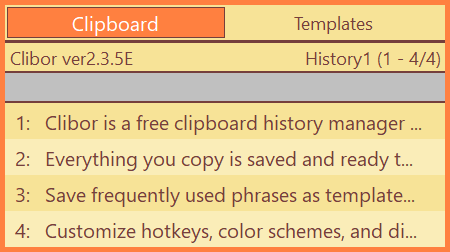
Right-click the Clibor icon in the system tray and choose Select multiple history entries.
On the screen that opens, select all entries and click Merge and copy to clipboard.
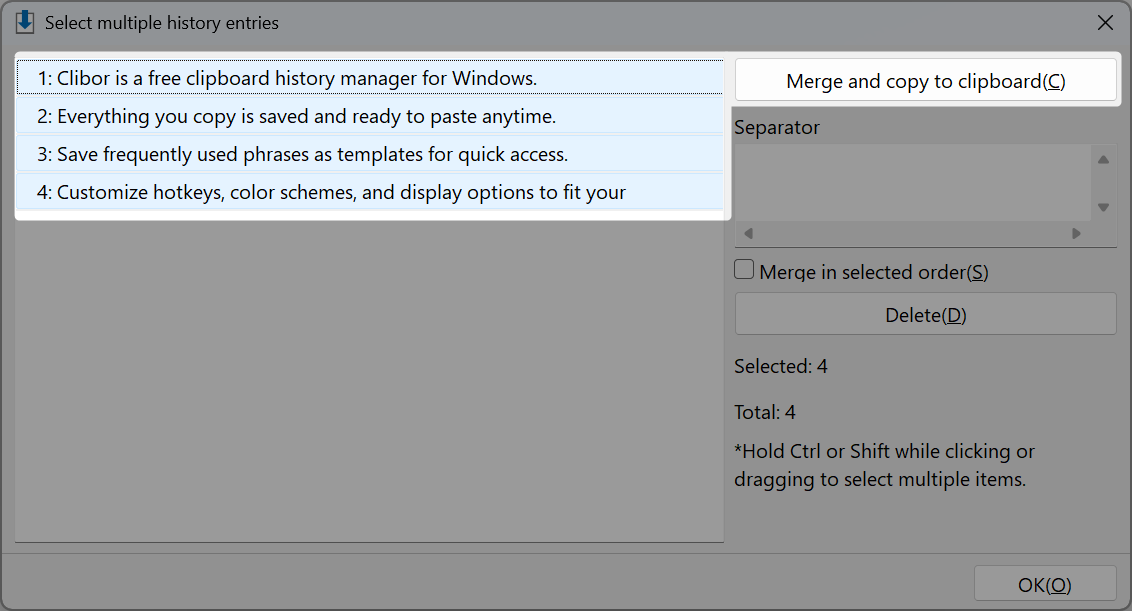
All history entries are copied to the clipboard. Paste them into Notepad and save the file.
Fill multiple text boxes (e.g., an address form)
When shopping online, you may need to fill in several separate fields — zip code, street, city, and so on.
For this, use the Template FIFO data feature.
Open the template editor and choose FIFO mode data from the Macro menu.
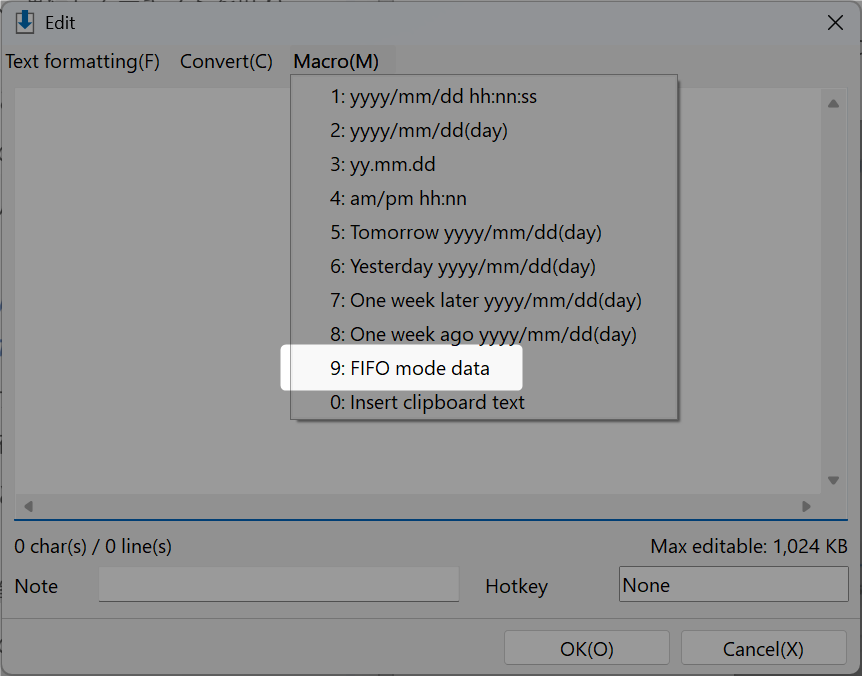
A skeleton like this is inserted:
<$CLB_TFIFO/>
<$CLB_DT>AAA</CLB_DT>
<$CLB_DT>BBB</CLB_DT>
Edit it to add your address fields:
<$CLB_TFIFO/>
<$CLB_DT>12345</CLB_DT>
<$CLB_DT>123 Main St</CLB_DT>
<$CLB_DT>Springfield</CLB_DT>
<$CLB_DT>IL</CLB_DT>
<$CLB_DT>Apt 4B</CLB_DT>
The first line must always be:
<$CLB_TFIFO/>Each line below becomes one FIFO entry:
<$CLB_DT>12345</CLB_DT>Save the Template.
When you select it, Clibor switches to FIFO mode and pasting into each field becomes much faster.