

Text formatting
By default, you can format clipboard history as follows:
Text formatting can be customized freely.
To edit formatting rules, right-click the Clibor icon in the menu bar and select "Edit: Text formatting".
The following editing window will appear.
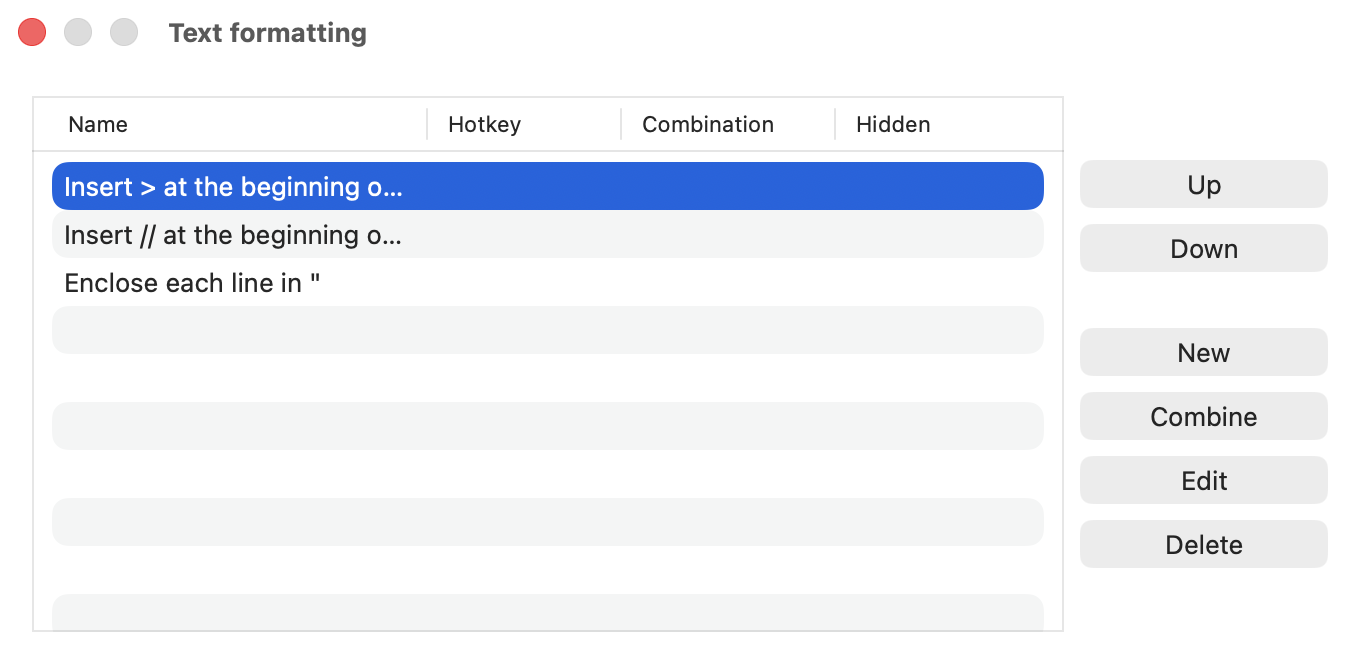
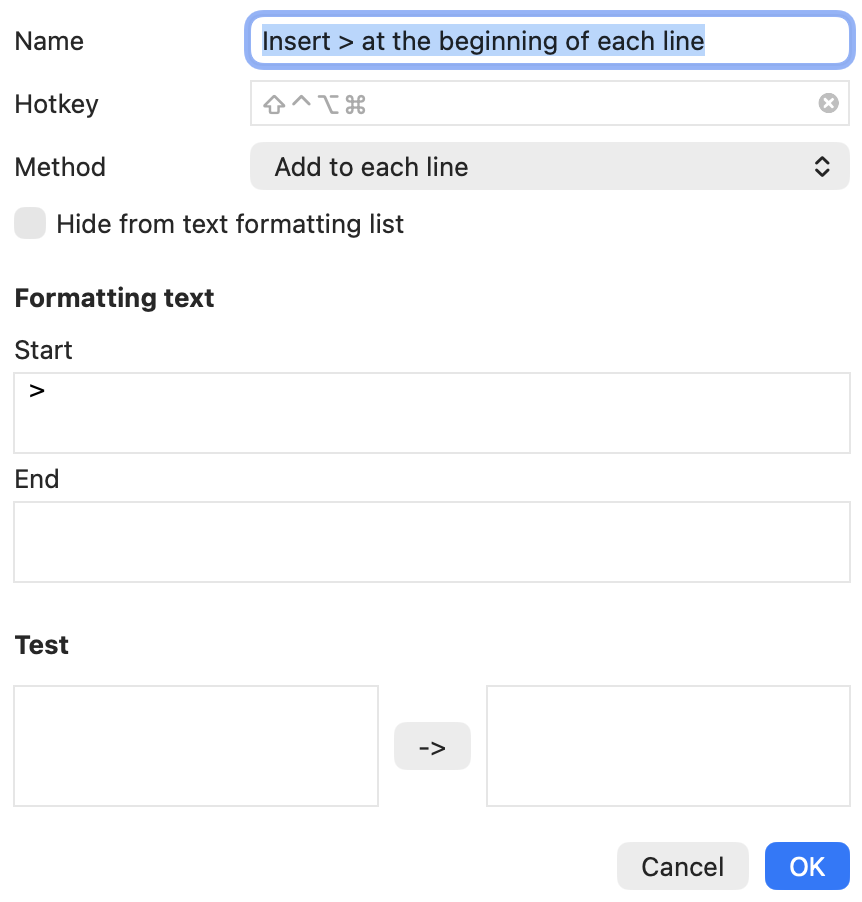
Click the "New" button and enter a name for the formatting rule.
For example, if you want to replace a specific string, enter the replacement text accordingly.
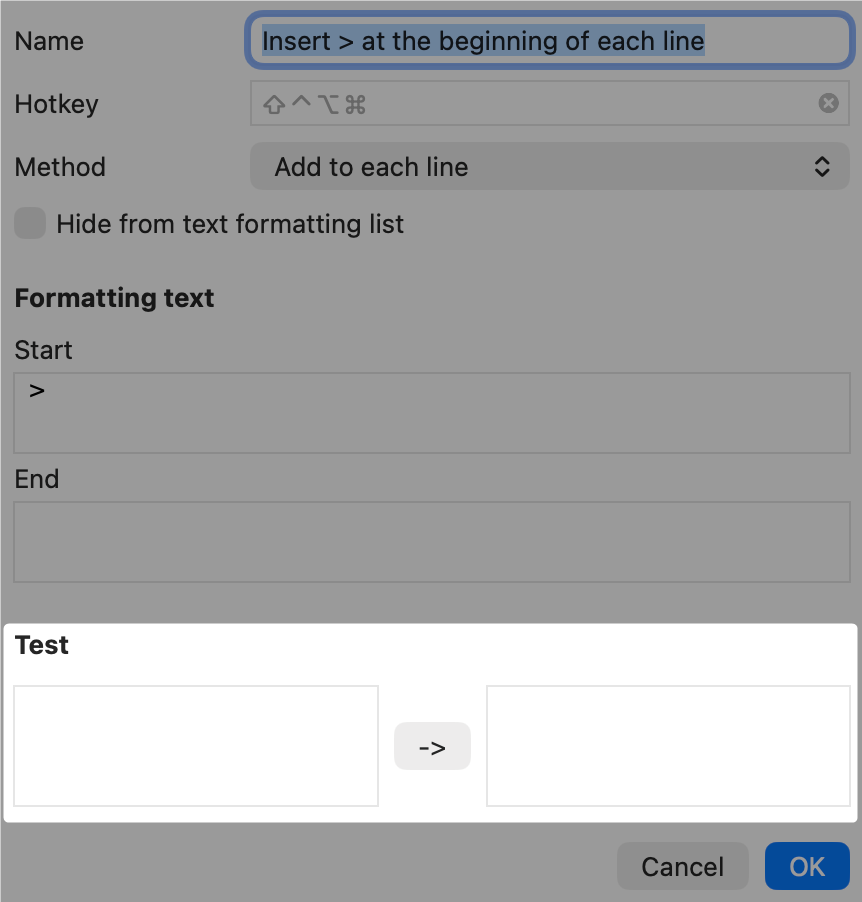
You can preview the formatting before saving.
Regular expression-based substitutions are also supported, enabling advanced formatting.
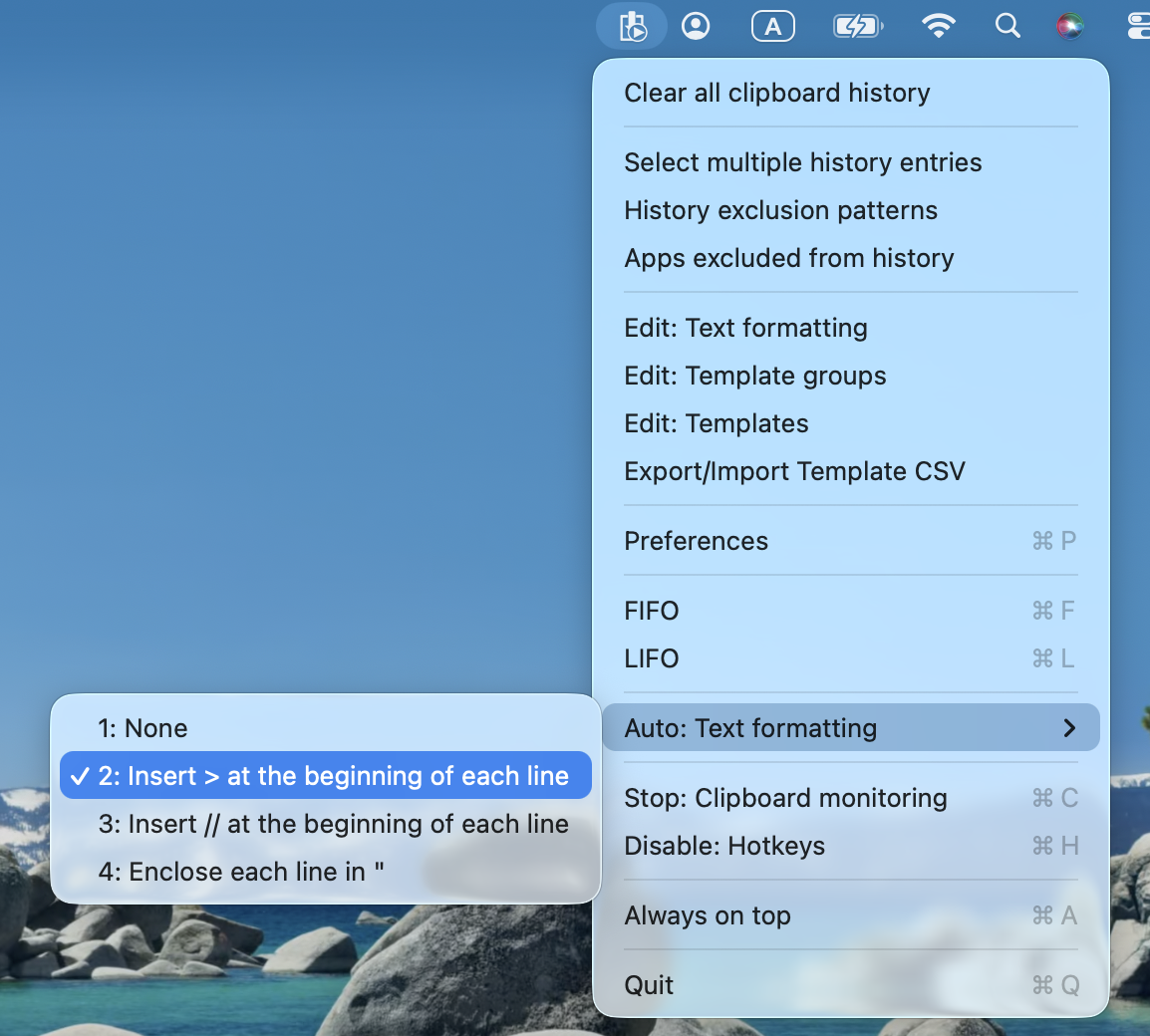
Auto: Text formatting
Clibor supports automatic clipboard formatting.
When you copy a string, it is set to the clipboard and the specified formatting is applied instantly.
Template macros
You can insert the current date and time into a template using macros.
From the Macro menu on the template edit screen, select the desired date format and insert it.
You can also insert a FIFO macro.
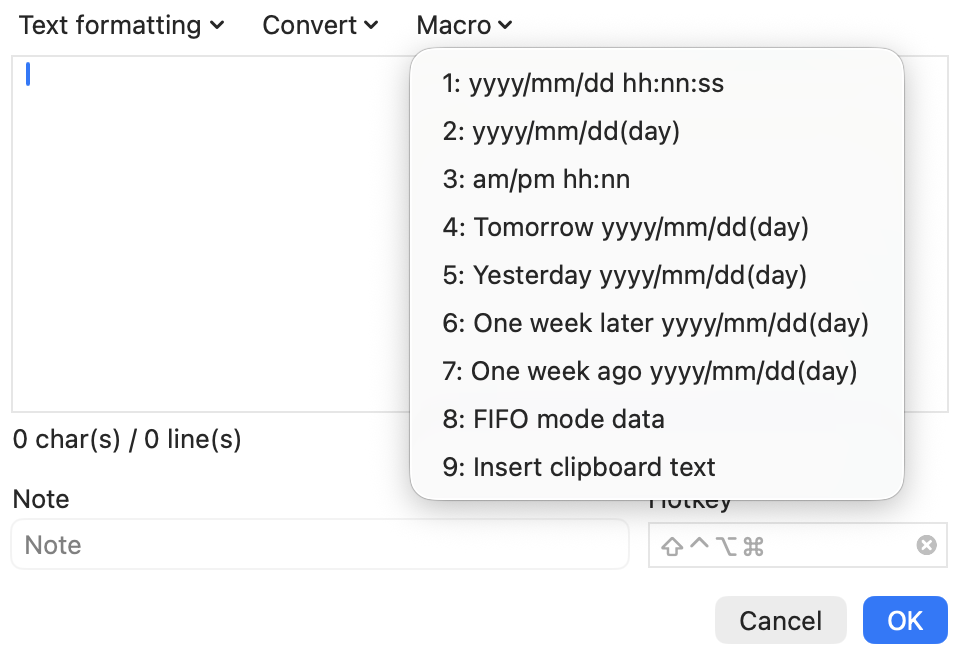
To use it, simply select the template as usual and paste it—Clibor will insert the current time in the specified format.
The date format can also be customized freely.

| <$CLB_HDATE>yyyy/MM/dd HH:nn:ss</CLB_HDATE> | Date formats such as yyyy/MM/dd can be specified. (See Q&A for date format specifications) |
| <$CLB_INCSEC>n</CLB_INCSEC> <$CLB_INCMIN>n</CLB_INCMIN> <$CLB_INCHOUR>n</CLB_INCHOUR> <$CLB_INCDAY>n</CLB_INCDAY> <$CLB_INCMON>n</CLB_INCMON> <$CLB_INCYEAR>n</CLB_INCYEAR> | It can be defined using the CLB_HDATE tag. You can specify values for hours, minutes, seconds, year, month, and date. Negative values can also be used. For example, the following setting will output the date one day later: <$CLB_INCDAY>1</CLB_INCDAY> $CLB_INCSEC:seconds $CLB_INCMIN:minutes $CLB_INCHOUR: hour $CLB_INCDAY: Day $CLB_INCMON: Month $CLB_INCYEAR:Year |
| <$CLB_TFIFO/> <$CLB_DT>AAA</CLB_DT> <$CLB_DT>BBB</CLB_DT> | Sets up FIFO mode data. Selecting this template switches to FIFO mode, so the specified items are pasted one after another. |
| <$CLB_CLIPBOARD/> | Replaced with the current text on the clipboard. |